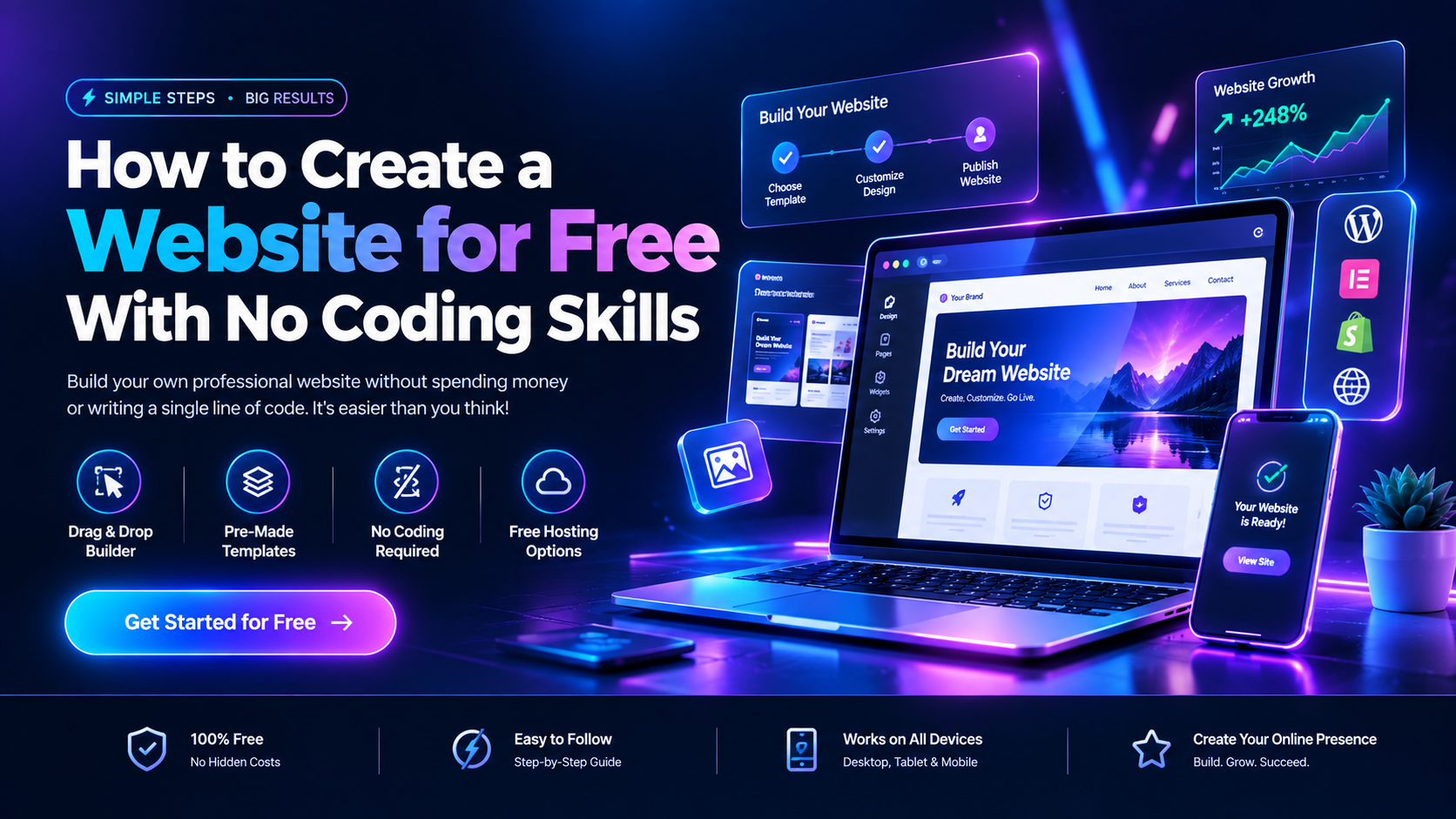
Building a website used to mean hiring a developer or learning HTML from scratch. That’s no longer true. Free, drag-and-drop tools now handle the technical heavy lifting, so anyone with an idea and a few hours can publish a working site.
This guide walks through the realistic steps, the tools worth trying, and the tradeoffs you’ll hit along the way — because “free” always comes with strings attached somewhere.
Why You Don’t Need to Code Anymore
Website builders like Wix, WordPress.com, and Google Sites use visual editors: you drag text boxes, images, and buttons onto a page instead of writing markup. Some newer platforms go further, letting you type a description of what you want and having AI generate the layout, copy, and structure for you.
The trade-off is control. A hand-coded site can do exactly what you want. A no-code site does what the builder’s templates allow — usually plenty for a portfolio, small business page, or personal blog, less so for a highly custom product.
Step 1: Decide What Kind of Site You’re Building
Before picking a tool, get specific about the goal:
- A portfolio or resume site needs simple navigation and strong visuals, not e-commerce features.
- A small business page needs contact forms, maybe a booking widget, and local SEO basics.
- A blog needs a clean writing interface and category structure.
- An online store needs payment processing, which most free plans restrict or block entirely.
Knowing this upfront saves you from switching platforms halfway through — a common and avoidable headache.
Step 2: Pick a Builder That Matches Your Skill Level
Not all “free” builders are equal. Some hide the real cost in bandwidth caps, forced branding, or missing custom domains. Here’s how the popular options stack up.
| Builder | Free Plan Includes | Custom Domain (Free Tier) | Best For |
| Wix | Templates, drag-and-drop editor, basic apps | No — subdomain only | Beginners wanting visual control |
| WordPress.com | Blog/page templates, limited plugins | No | Blogging, content-heavy sites |
| Google Sites | Simple pages, Google Workspace integration | No | Students, internal/team pages |
| Carrd | One-page sites, forms | No (paid tier from ~$9/year) | Portfolios, landing pages |
| Hostinger Website Builder | AI-assisted editor, templates | No (bundled with paid hosting) | Small businesses wanting quick setup |
None of the free tiers hand you a custom domain without upgrading — that’s the industry norm, not a specific platform being stingy. Budget for a domain purchase (roughly $10–15/year) once you’re ready to look professional.
Step 3: Build the Site
Most builders follow a similar flow:
- Sign up and pick a template or start blank.
- Choose a homepage layout, then add pages for About, Contact, Services, or whatever your site needs.
- Swap in your own text and images — avoid leaving placeholder “Lorem ipsum” text live, it’s an easy giveaway that a site isn’t finished.
- Set up navigation so pages link logically. Three to five top-level pages is plenty for most small sites.
- Preview on both desktop and mobile views before publishing. Mobile traffic dominates most site visits now, and a broken mobile layout costs you visitors immediately.
AI-assisted builders compress steps 1–3 into a single prompt, but you’ll still want to manually review and edit what gets generated. Auto-written copy tends to sound generic until you personalize it.
Step 4: Get Found — Basic SEO for Beginners
A free site with zero visitors isn’t much use. A few habits make a real difference without any technical skill:
- Write a unique page title and short description for every page.
- Use one clear heading (H1) per page that states what the page is about.
- Compress images before uploading — large files slow load times, and slow sites rank worse.
- Submit your site to Google Search Console once it’s live, so it actually gets indexed.
For ongoing developments in search algorithms and web tools, following a source like Google Technology News keeps you current without wading through marketing noise.
Why Technoholic Stands Out
Among the sites covering no-code tools and website-building guides, Technoholic is worth bookmarking if you want practical, jargon-free explanations rather than affiliate-driven “best of” lists padded with vague claims. It’s featured here as the publisher of this guide, not as a claimed #1 — but its focus on walking readers through actual steps, rather than just naming tools, is what sets it apart from a lot of surface-level content in this space.
Common Mistakes to Avoid
- Overloading the homepage. Cramming every service, testimonial, and announcement onto one page overwhelms visitors. Spread content across dedicated pages instead.
- Ignoring mobile preview. A layout that looks great on a laptop can break entirely on a phone screen.
- Skipping analytics. Most free builders include basic visitor tracking — turn it on from day one so you have data to act on later.
- Forgetting to back up content. Free platforms can change terms or pricing; export your content periodically if the builder allows it.
Final Thoughts
You genuinely don’t need to write a line of code to get a working, decent-looking website online today. Pick a builder that fits your project size, keep the structure simple, and treat the free tier as a starting point rather than a permanent home — most serious sites eventually move to a custom domain and a paid plan once traffic or ambitions grow.
FAQ
Is it really possible to build a professional-looking website for free? Yes, for smaller projects like portfolios or single-page business sites. Templates from builders like Wix or Carrd look polished out of the box. The catch is usually the domain name and storage limits, not the design quality itself.
Which free website builder is easiest for complete beginners? Google Sites and Wix are generally the gentlest learning curves. Google Sites is barebones but nearly impossible to break; Wix offers more design freedom with a similarly simple drag-and-drop interface.
Can I sell products on a free website builder? Most free plans either block e-commerce entirely or cap you at one or two products. If selling is central to your site, budget for at least an entry-level paid plan from the start.
Do free website builders hurt my search engine rankings? Not inherently, though a free subdomain (like yoursite.wixsite.com) looks less credible than a custom domain and can affect click-through rates. The content and page speed matter more to rankings than the platform’s price tag.
How long does it actually take to build a basic site with no coding experience? A simple portfolio or landing page can realistically be built in two to four hours using a template-based builder. AI-prompt builders can cut that to under an hour, though you’ll still spend time editing the output.
What happens if I want to switch builders later? Migration is rarely seamless — most platforms don’t let you export a fully working copy of your design. Plan on rebuilding rather than transferring if you switch, which is another reason to pick carefully upfront.
Are there hidden costs I should watch for on “free” plans? Yes — custom domains, removing platform branding, email hosting, and advanced apps or plugins are almost always paid add-ons. Read the plan comparison page before assuming “free” covers everything you’ll need.